CSV Files Explained: Rows, Fields and a Reliable Import
What does a CSV file send to another system? CSV represents records and fields as text for exchanging tabular information.
1:47 · No narration: the video shows each step as text on screen, and every step is written out below, with buttons that jump the video to it.
Prefer YouTube? Watch this video on our YouTube channel (opens in a new tab).
The six points in the video
This is a silent video. The headings, explanations and labels below reproduce the information on screen.
-
Step 1: Start with the records
Identify what one record represents in this transfer.
On-screen labels: One record; Useful fields; Expected values.
-
Step 2: Review the field names
A header can identify the fields expected by the receiving system.
On-screen labels: Optional header; Field names; Agreed order.
-
Step 3: Agree the actual format
Check the separator, quoting and text encoding expected by the importer.
On-screen labels: Field separator; Quote handling; Text encoding.
-
Step 4: Handle commas inside values
Quoted fields can keep a comma within the value it belongs to.
On-screen labels: Comma in a value; Quoted field; Correct boundary.
-
Step 5: Check imported values
Inspect dates, identifiers and text after a small trial import.
On-screen labels: Sample records; Expected dates; Correct identifiers.
-
Step 6: Reconcile the result
Compare the received records with the intended transfer.
On-screen labels: Record count; Accepted values; Import messages.
A practical check for your business
Agree the importer field names, separator, quoting and encoding before transferring records. Use a small representative sample and compare dates, identifiers and record counts after import.
Sources and further detail
See it in a diagram
Read the diagram as text
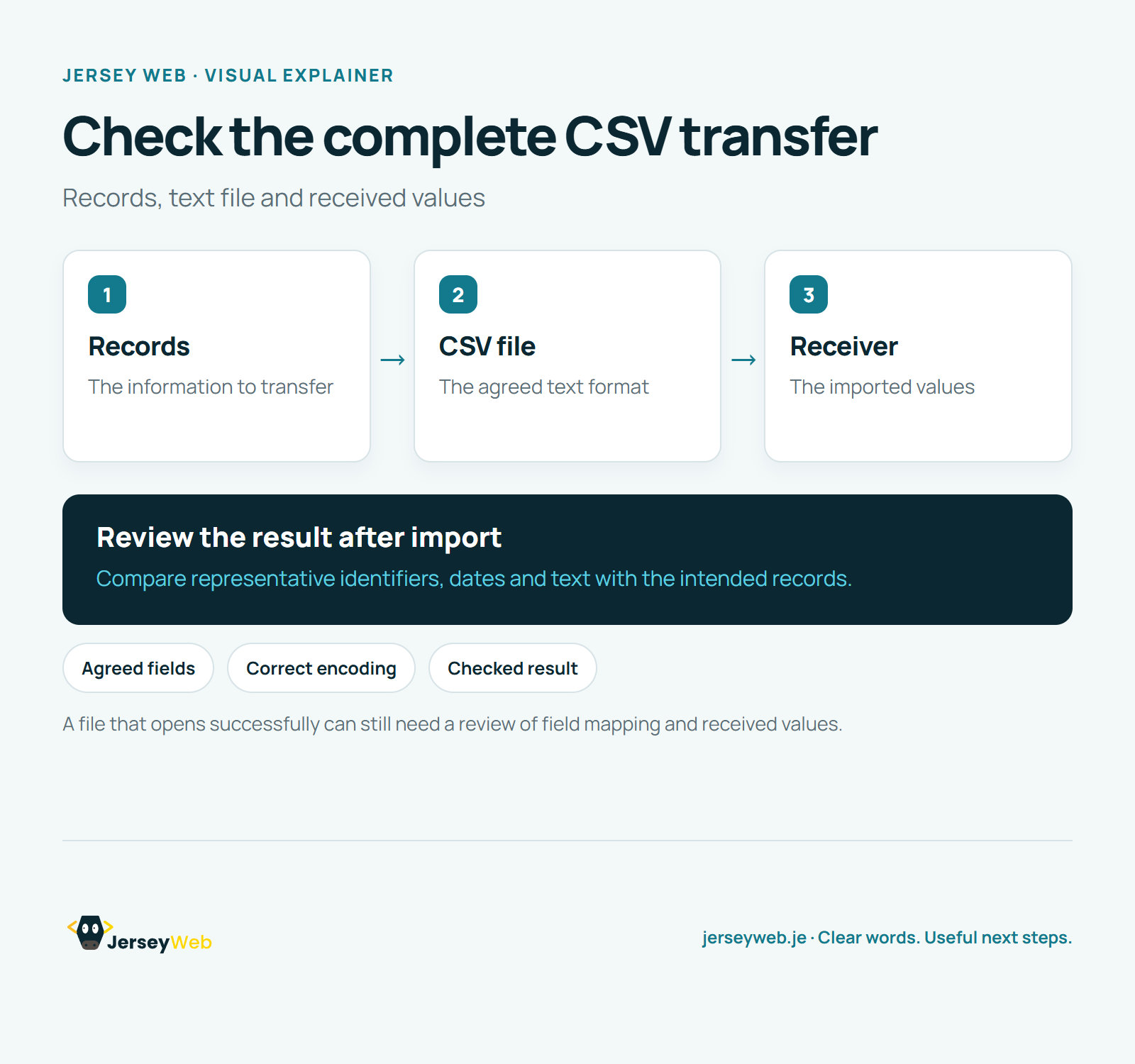
- Records: The information to transfer
- CSV file: The agreed text format
- Receiver: The imported values
Review the result after import. Compare representative identifiers, dates and text with the intended records.
A file that opens successfully can still need a review of field mapping and received values.
Diagram by Jersey Web. Open full size · Source and further detail (opens in a new tab)
Common questions
What does a CSV file send to another system?
CSV represents records and fields as text for exchanging tabular information. Review a small import before changing a large set of records.
Go further
More video tips
All 205 videos →
XML Explained: Tagged Information and Agreed Data Formats
XML files, explained.
Markdown Explained: Headings, Lists and Links in Plain Text
Markdown, explained.