Watch a related explainer
In plain English
A screen reader presents information from an interface through speech or braille. It uses information exposed by the browser and operating system, including relevant content, structure and controls. The way a website is built affects what it can communicate and how a person can navigate or operate that content.
W3C’s tools-and-techniques overview places screen readers among the varied ways people use the web. Access needs and preferences differ. Someone may use a screen reader, enlargement, alternative input or a combination of approaches; one assumed browsing method cannot represent everybody.
A screen reader is more than a button that reads visible paragraphs aloud. A person may navigate by headings, move between controls or review a changing state. An interface therefore needs understandable names and structure as well as readable text. A visually obvious action can remain unclear when its underlying information is incomplete.
Why it matters for a Jersey business
Important customer tasks often involve several kinds of information: a service description, an option, a form instruction and a success message. Review how those parts connect. If a field has no understandable name or an error is not associated with it, hearing the introduction clearly does not make the enquiry route usable.
The owner should also plan content updates with this experience in mind. A new image, shortened button label or expanded section can change what is communicated. Give editors guidance on descriptions and structure, and involve the developer where the problem concerns a reusable component or dynamically updated information.
A realistic Jersey example
Imagine a Jersey organisation adding an enquiry form to a service page. This is a hypothetical example. The visible design uses icons for some actions and places hints beside fields. A review checks whether the screen reader presents useful action names and the relevant field instructions in the working journey.
The reviewer records an unclear icon-only control and asks the developer to supply an appropriate name. The team then checks that the correction remains consistent with the visible purpose. It repeats the affected task without assuming that this one correction establishes complete accessibility for every page or technology combination.
What to review with a screen reader
Define the task and environment. Record the pages, browser and assistive technology involved so observations can be understood and reproduced. Choose tasks with real importance, such as finding a service requirement or completing an enquiry. Include appropriate expertise and relevant users rather than treating an unfamiliar tool demonstration as a complete assessment.
Review structural navigation. Check whether headings and relevant regions help locate the content. A page with visually prominent section titles may still lack useful underlying structure. Compare the intended organisation with what the tool exposes and record confusing sequences or missing relationships that affect understanding of the task.
Check names and descriptions. W3C’s naming guidance distinguishes concise element names from additional descriptions. Inspect form fields, links and controls in context. The name should communicate the purpose, while supporting information should remain available where it helps the person understand an instruction or requirement.
Review image information. Decide what each image contributes and supply an appropriate alternative. Decorative images should avoid unhelpful announcements; complex diagrams need usable explanations of their important content. Check the page’s actual output rather than assume a media-library entry reaches every instance of an image correctly.
Operate interactive components. Open menus, change options and use relevant disclosure or dialog controls. Check whether the available names, roles and states reflect the behaviour. A control can appear visually open while its exposed state remains closed. Such inconsistencies need review in the component, including its keyboard handling.
Review changing feedback. Check relevant errors, progress and completion messages. The person should be able to discover the information needed to continue without an excessive stream of announcements. The developer should choose appropriate techniques for the actual behaviour and test them in the journey rather than apply urgent alerts to every change.
Record limits and follow-up. W3C’s evaluation overview describes a range of evaluation approaches. Keep the task coverage, observed barriers and remaining checks clear. After a correction, review the affected route again and consider where a shared component means the same issue or fix applies elsewhere.
Common myths
A screen reader only reads a page continuously. Structure and controls support other interaction.
Visual proximity supplies a field relationship automatically. Check its exposed information.
One passing demonstration proves universal access. State the reviewed tasks and limits.
Our take
Jersey Web considers screen-reader use when reviewing content and customer tasks. Provide useful structure and names, check interactive states and involve suitable expertise. Record what was actually reviewed so the owner can understand the evidence and the work still needed.
See it in a diagram
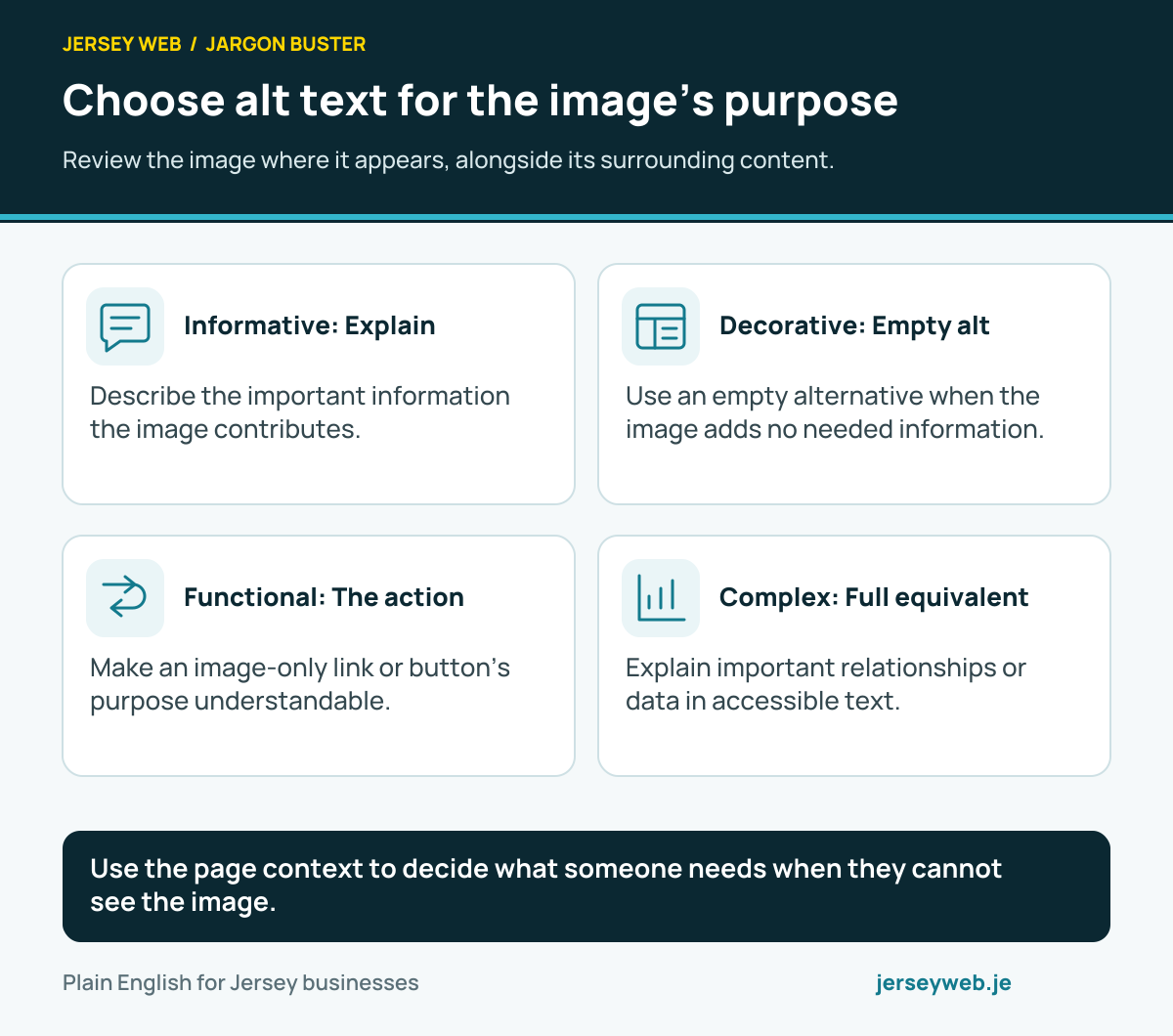
Use the page context to decide what someone needs when they cannot see the image.
Read the diagram in text
- Informative: Explain. Describe the important information the image contributes.
- Decorative: Empty alt. Use an empty alternative when the image adds no needed information.
- Functional: The action. Make an image-only link or button’s purpose understandable.
- Complex: Full equivalent. Explain important relationships or data in accessible text.
Diagram sources
Related terms
Learn more
Common questions
- Does a screen reader only read paragraphs from top to bottom?
- No. Screen-reader interaction can include navigating structure and operating controls. Headings, links, names and states help communicate the interface. Review the actual task rather than only a continuous reading demonstration.
- Is a screen reader the same as a magnifier?
- No. A screen reader presents information through speech or braille; a magnifier enlarges the visual presentation. People’s tools and preferences vary, so do not assume one method represents every access need.
- Does adding ARIA make a site work with screen readers?
- Appropriate ARIA can communicate information where needed, but incorrect use can create barriers. Suitable native HTML, accurate states and task-based testing remain important.
- Can one screen-reader check prove complete accessibility?
- No. Results depend on the tasks, tools and scope reviewed. Combine suitable automated and manual evaluation with relevant user involvement, and keep remaining checks explicit.
Written by Jersey Web. Last reviewed 3 October 2026. Back to the Jargon Buster.