Watch a related explainer
In plain English
Website accessibility concerns whether people with different disabilities can use the content and functions of a website. Think of providing a clear usable entrance to a service, together with information and controls that work for different visitors. The digital barriers are not always visible to a person browsing with a mouse on a large screen.
Someone may use a screen reader, keyboard, speech input or magnification. Another visitor may need captions, clearer wording or more time to complete a task. W3C’s introduction describes accessibility across a range of disabilities and technologies. It is wider than whether an image has a description or a page uses large text.
The Web Content Accessibility Guidelines provide testable criteria, organised around perceivable, operable, understandable and robust content. The WCAG quick reference lets developers inspect the relevant criteria and techniques. When discussing conformance, identify the version and level rather than using “WCAG compliant” as an unexplained slogan.
Why it matters for a Jersey business
A customer should be able to understand your service, find a contact route and complete the important task without an unnecessary digital barrier. A small business can lose an enquiry because a form label is missing, a focus indicator is invisible or an error message does not explain what to correct. Attractive photography does not make up for those problems.
Jersey-specific legal duties need careful local assessment; this definition is not a legal checklist. The practical work is still clear: identify the customer routes, assess barriers and fix the design and code where needed. Our Jersey accessibility guide supplies more context without treating a general technical standard as the entire local legal position.
A Jersey example
Imagine a hypothetical St Helier salon with an online appointment form. A visitor using a keyboard can reach the first field but cannot operate the date selector. Another visitor enlarges the text and loses the submit button behind a fixed panel. Both are genuine obstacles even though the homepage looks good in a screenshot.
The developer checks the whole route, provides usable controls and tests the error and confirmation states. The owner verifies the booking can be completed with the intended service information. A single automated scan of the homepage would not have established that.
What to do
Start with key tasks: finding hours, navigating services, making contact, booking and paying where relevant. W3C’s preliminary checks provide an accessible starting point, while making clear that initial checks do not replace a full assessment. Record the barriers and the affected steps, not only a tool’s overall score.
Check keyboard operation and visible focus, the heading structure, link purpose and meaningful text alternatives. Enlarge text and inspect small screens. Make sure important information is not conveyed by colour alone. Avoid controls whose name or purpose is only apparent from an unlabeled icon or a mouse hover.
Check forms carefully. W3C’s form guidance covers clear labels, instructions and feedback. Errors should be identifiable and understandable, and a successful submission should be clearly confirmed. Ask only for information the business needs, and provide a suitable alternative contact route where a person requires help.
Combine appropriate automated tools with manual evaluation and user feedback. Tools can reveal certain technical issues quickly but cannot decide every question about meaning or usability. If a supplier claims conformance, ask for the scope, method, criteria and limitations. Keep maintenance in view: a later content change, plugin or embedded booking tool can introduce a new barrier.
Common myths
“Responsive means accessible.” Screen adaptation and accessibility overlap, but neither label proves the other.
“A badge or overlay fixes every problem.” The underlying content and interactions still need appropriate evaluation and repair.
“An automated pass proves everything works.” Human judgement and task testing remain important for many barriers.
Our take
Jersey Web’s view is that accessibility work should be tied to people completing real tasks. Use standards to make the assessment specific, then test the routes the business actually offers. Clear evidence about what was checked and fixed is more useful than a broad promise with no stated scope.
A real Jersey example
Make the information available without seeing the photograph
The lighthouse photograph illustrates an island setting. Its alternative describes the visible subject, and the surrounding text remains available as ordinary page content. Review the purpose of each image as well as navigation, contrast and forms; adding one description does not establish that the whole website is accessible.

The alternative used here
alt="La Corbière Lighthouse stands on dark rocks against blue-grey water beneath a pink and peach evening sky."
Describe the information the image contributes in its actual context. An unrelated list of business keywords would make this alternative less useful.
Browse the original Jersey photo library → · Check photo usage terms
See it in a diagram
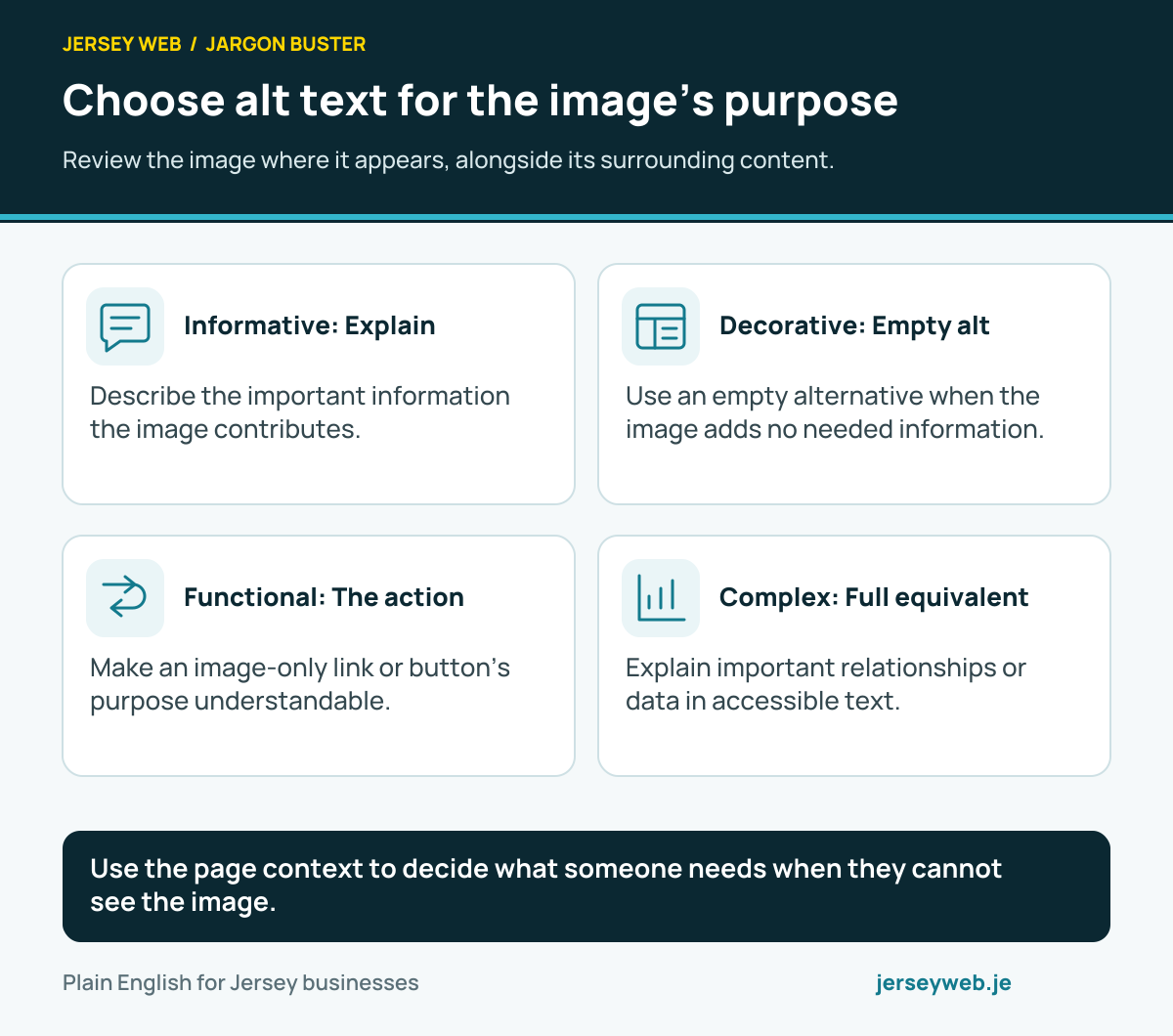
Use the page context to decide what someone needs when they cannot see the image.
Read the diagram in text
- Informative: Explain. Describe the important information the image contributes.
- Decorative: Empty alt. Use an empty alternative when the image adds no needed information.
- Functional: The action. Make an image-only link or button’s purpose understandable.
- Complex: Full equivalent. Explain important relationships or data in accessible text.
Diagram sources
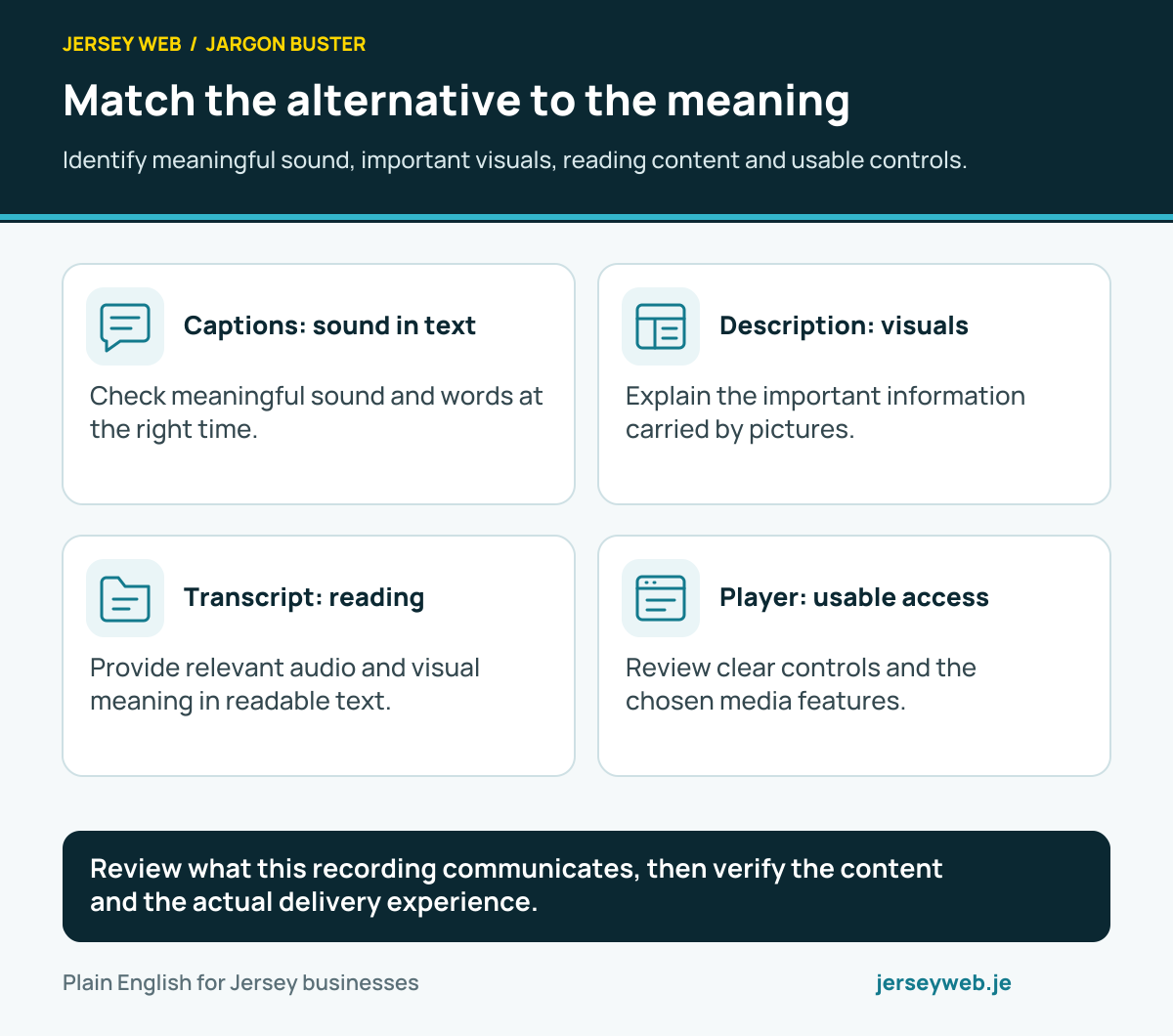
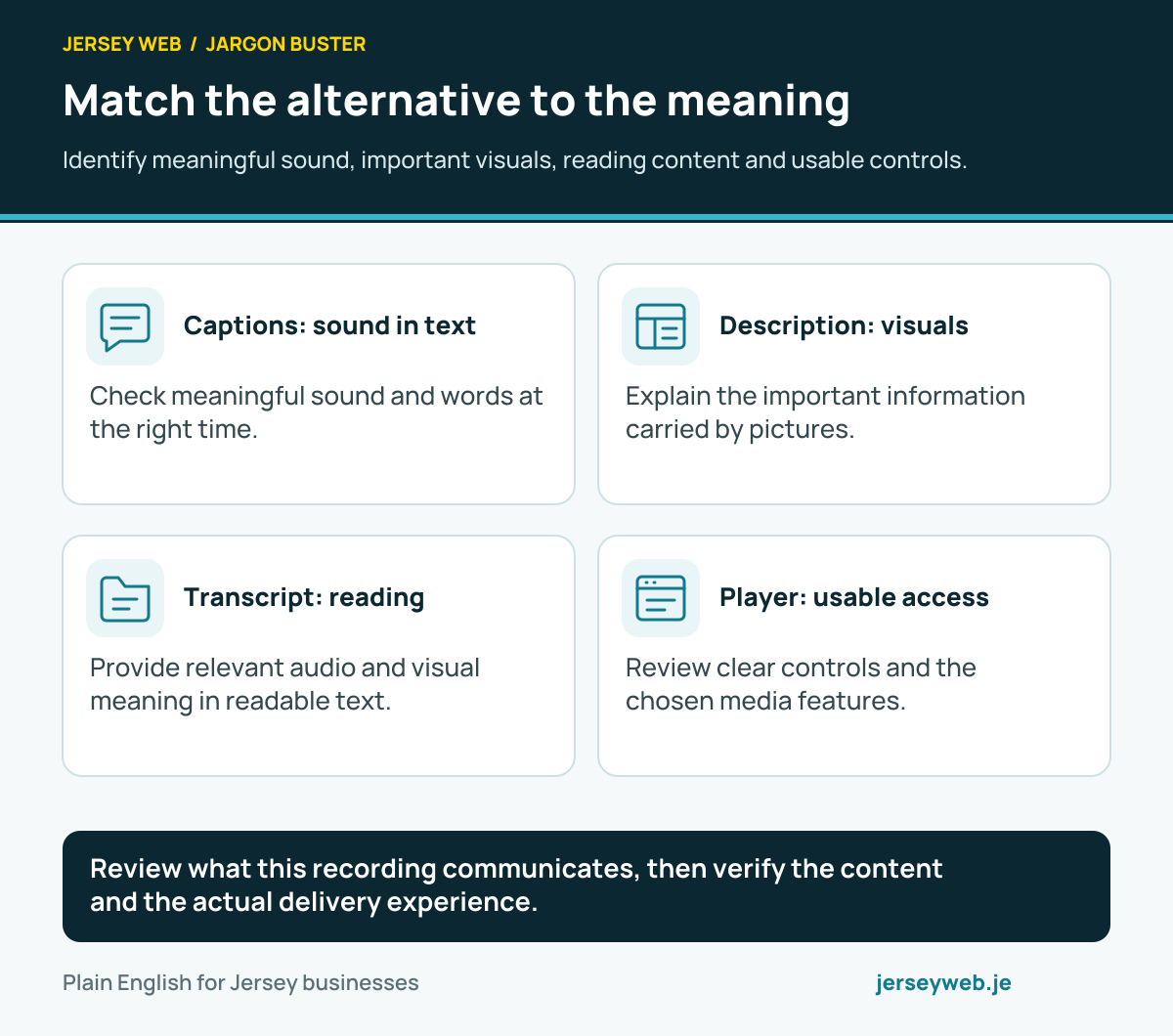
Review what this recording communicates, then verify the content and the actual delivery experience.
Read the diagram in text
- Captions: sound in text. Check meaningful sound and words at the right time.
- Description: visuals. Explain the important information carried by pictures.
- Transcript: reading. Provide relevant audio and visual meaning in readable text.
- Player: usable access. Review clear controls and the chosen media features.
Related terms
Learn more
Common questions
- Is accessibility only about screen readers?
- No. People may use keyboards, voice input, magnification or other tools, and may have visual, hearing, physical, cognitive or other disabilities. Accessible content and interactions should consider a range of needs.
- What does WCAG mean?
- WCAG stands for Web Content Accessibility Guidelines, published by W3C. They provide testable criteria organised around perceivable, operable, understandable and robust content. State the version and level when discussing conformance.
- Does a mobile-friendly layout prove accessibility?
- No. Responsive layout is helpful, but a page may still have unlabeled fields, poor contrast or keyboard barriers. Test the content, controls and complete customer tasks as well as screen size.
- Can an automated checker prove full conformance?
- No. Automated tools can find some issues, but manual evaluation and appropriate user testing are also needed. A passed scan or accessibility badge alone does not establish that every task is usable or that all criteria are satisfied.
Written by Jersey Web. Last reviewed 12 October 2026. Back to the Jargon Buster.